

Migrating from WordPress to Grav
Requirements
- PHP v7.1 or above for the composer dependencies.
- WP-CLI installed on the WordPress host
- Working WordPress site from which content will be exported.
- R/W access to
wp-content/uploadson the WordPress site. - Composer installed on the Grav host.
Installation
- Download the latest release of the wp2grav_exporter plugin and upload it to your WordPress's
wp-content/pluginsdirectory. - Run
composer install --no-devwithin thewp2grav_exporterdirectory to install dependencies. - Enable the new plugin:
- Using wp-cli:
wp plugin activate wp2grav_exporter, or - Via the admin GUI.
- Using wp-cli:
- Run
wp wp2grav-allto export all items. See other options below. - Exported files are located at
WP_ROOT/wp-content/uploads/wp2grav-exports/DATE - For Grav v1.6 sites, https://github.com/david-szabo97/grav-plugin-admin-addon-user-manager is recommended to view and manage users. This is not required for Grav 1.7+ sites.
Notes
Running
wp wp2grav-allwill run each of the following export steps at once. Afterwards, follow each section below on how to import the new data to a Grav install.
Exporting Users from WordPress

WordPress users on left exported to Grav on the right.
Command
wp wp2grav-users will generate Grav user account files.
Results
- User accounts in the export directory under
EXPORT/accounts/.- Usernames will be padded to a minimum of 3 characters, maximum of 16.
- If a username is truncated or padded, the username will also have the WordPress uid to avoid collisions.
- Passwords in each account are randomly generated, and have no connection with the respective WordPress account. The plaintext password automatically converts to a hashed_password once the account authenticates for the first time.
Importing Users to Grav
Copy the EXPORT/accounts directory to your user directory (e.g. username.yaml files should be placed at user/accounts).
Exporting User Roles from WordPress
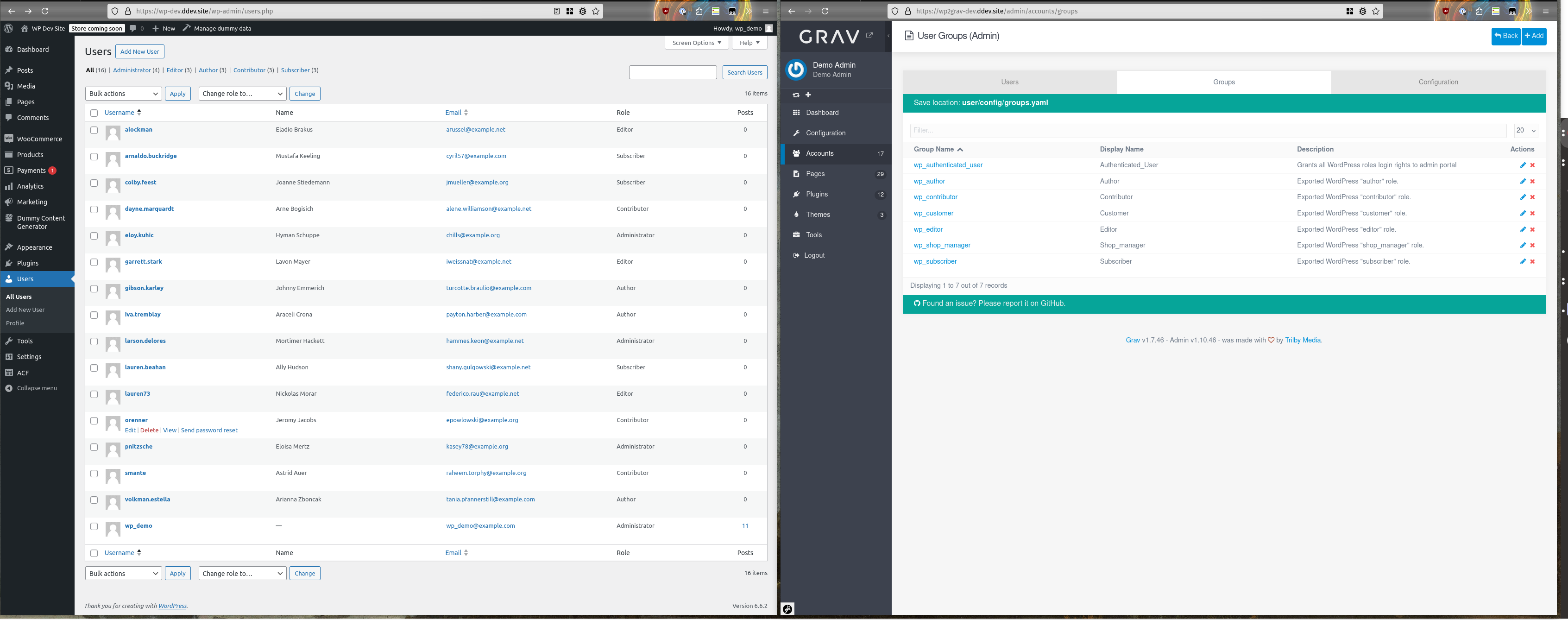
WordPress users with roles on left exported to Grav groups on the right.
Command
wp wp2grav-roles will generate a Grav groups.yaml file.
Results
WordPress user roles export as Grav groups in a groups.yaml file at config/groups.yaml. Some notes about the role exporting:
- Each WordPress role is converted to the Grav group
wp_<ROLE_WITH_UNDERSCORES>(e.g.subscriberbecomeswp_subscriber). - WordPress users with administrator roles receive the
wp_administratorgroup. - The
wp_administratorgroup receivesadmin.superaccess along withadmin.loginaccess. Accounts with these permissions are full admins on the site! - A new Grav group called
wp_authenticated_usergroup receivesadmin.loginaccess. - All accounts receive the "wp_authenticated_user" group.
Importing User Roles
Copy the EXPORT/config directory to users/config.
Exporting Post Types from WordPress
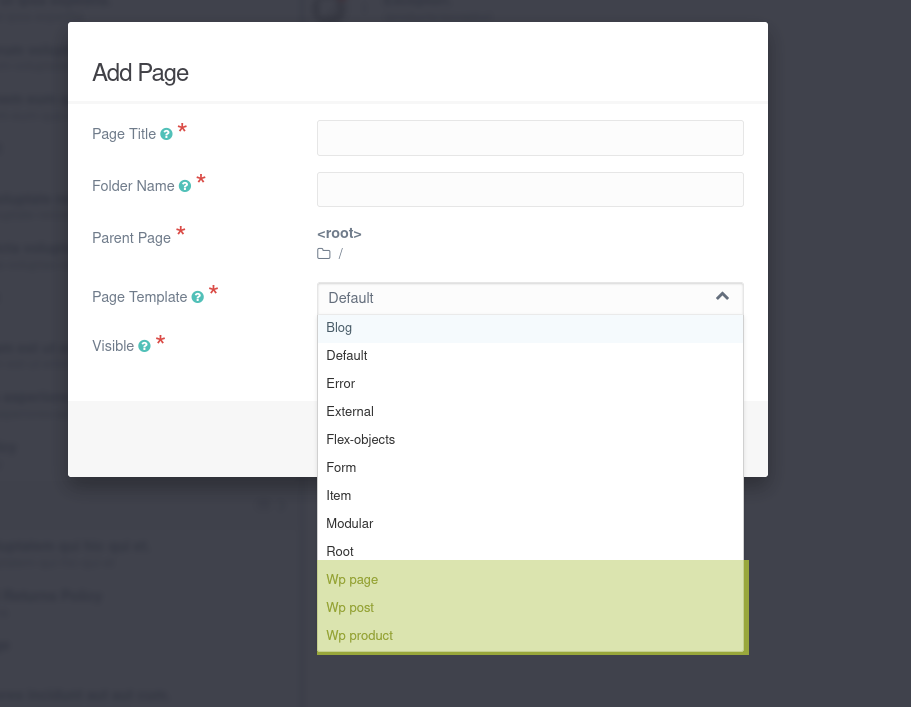
WordPress post types are converte to Grav page types, with a pre-pended "WP" in front of each type (highlighted in yellow here).
Command
wp wp2grav-post-typeswill generate a basic Grav plugin, along with page types that match the WordPress post types.
Results
- A Grav plugin will be generated that will present basic field functionality within the Admin tool.
Importing Post Types to Grav
- Copy the
EXPORT/pluginsdirectory to youruserdirectory - Navigate to the Grav plugin directory
user/plugins/wordpress-exporter-helperand runcomposer install.
Exporting Posts from WordPress
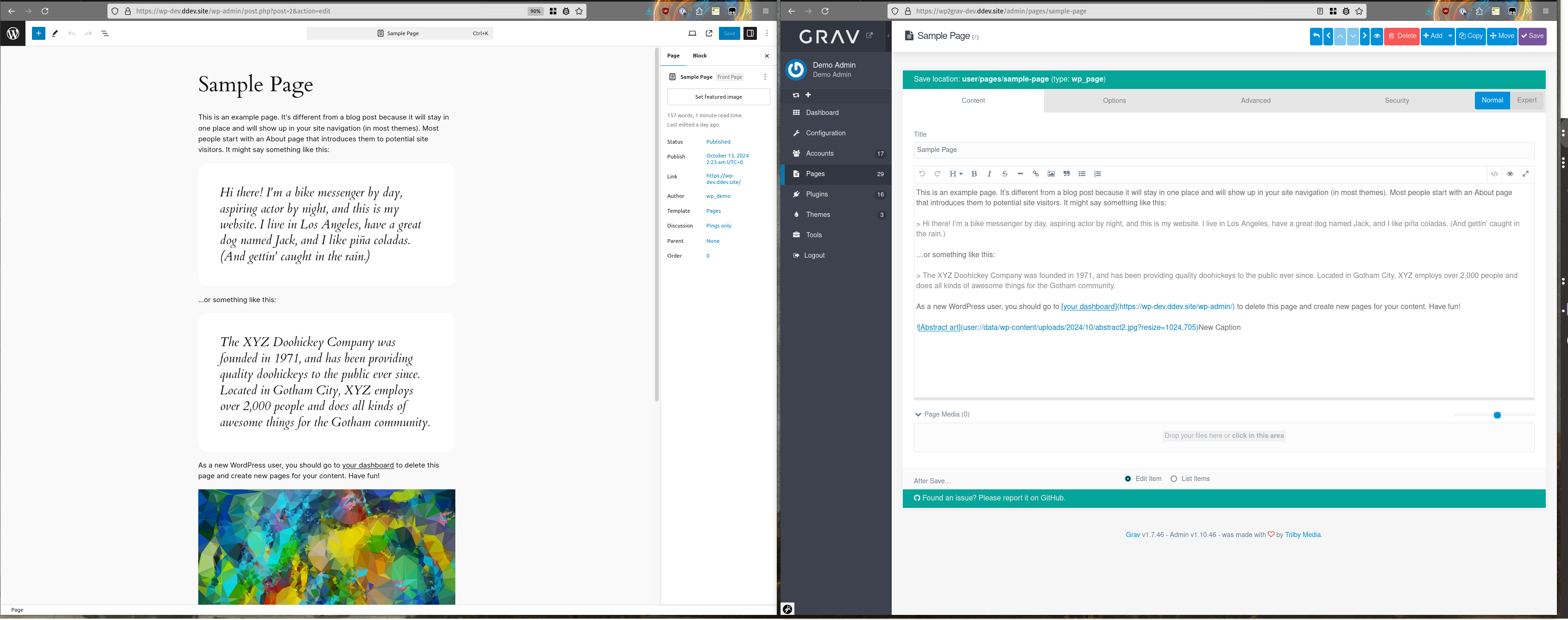
Admin view of WordPress "Sample Page" on left exported to Grav markdown on the right.
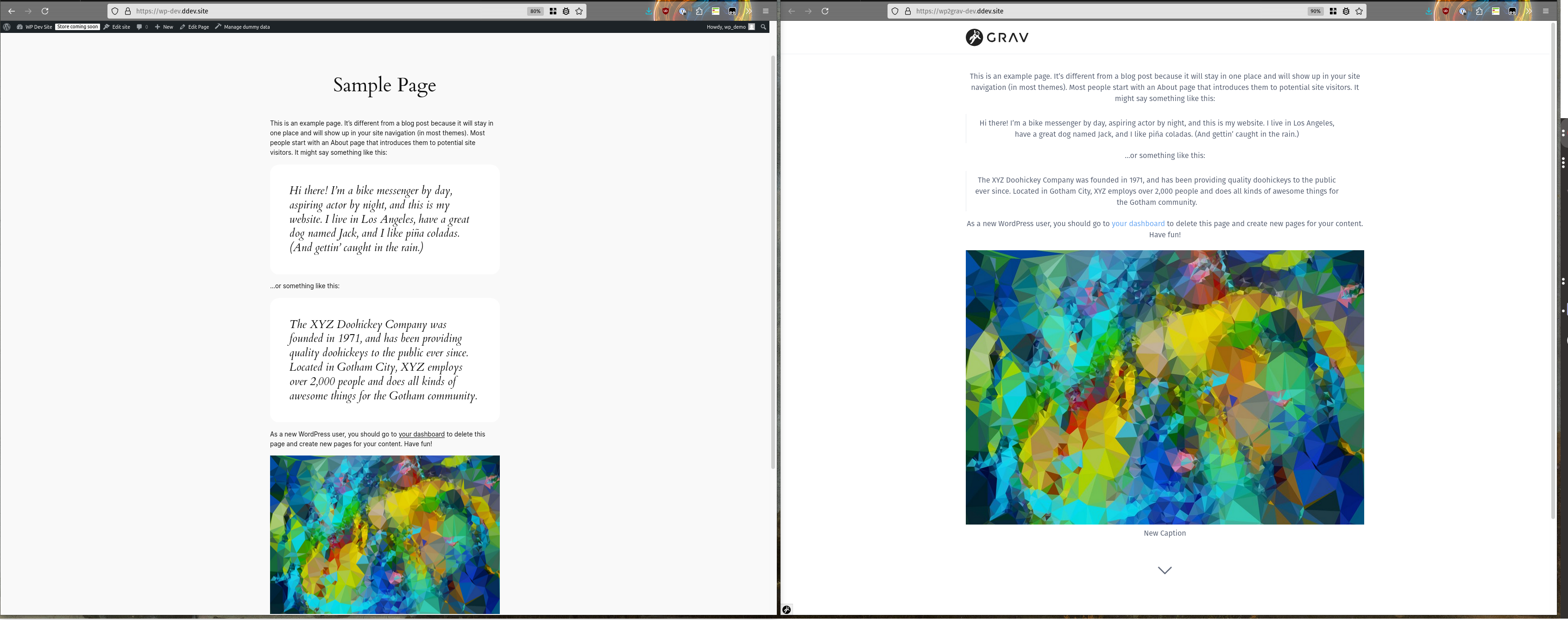
User view of WordPress "Sample Page" on left exported and rendered via Grav on the right.
Command
wp wp2grav-postswill export all posts.
Results
- Each post/page will be exported to directories matching metadata from the post, typically the post/ page title.
- Library media will be copied to the
data/wp-contentand in-line content will (eventually) be included within the page's directory.
Importing Posts to Grav
- Copy the
EXPORT/pagesdirectory to youruserdirectory - Copy the
EXPORT/datadirectory to youruserdirectory
Exporting Site metadata from WordPress

Admin view of WordPress General Settings on left exported to Grav Site Config on the right.
Command
wp wp2grav-sitewill export site metadata.
Results
- Grav site metadata is stored in
EXPORT/config/site.yaml.
Importing Site metadata to Grav
- Copy the
EXPORT/config/site.yamldirectory to Grav atuser/config/site.yaml.